How do you find your Android phone? Let us show you how.
There are a handful of phone recovery or anti-theft apps on the Google Play Store which can be a lifesaver in case you lose your phone or, even worse, it gets stolen. But many people might only realize that there are such apps AFTER it got lost. Then it usually is too late and you have to face the ugly truth that the phone is gone for good.
To find an Android phone which you misplaced or (even worse) was stolen from you, it usually still needs a working internet connection in order to transmit its location. To get the best location results it should have an active connection to a WiFi network. Whatever your situation might be, we’ll cover here the most common options as well as more out of the box approaches to cover also edge cases.
How to locate your Android phone using Google and its own services
Find your lost phone using third party tools
Install a tracking app to find your phone in the future
Answers to your burning questions
How to find your lost phone with Google and its own services
Find your phone using Google’s Find My Device (former Android Device Manager)
Requirements:
Your device is connected with your Google account.
Your device has access to the internet.
Allowed Find My Device to locate your device (turned on by default). This can changed in the Google Settings app.
Allowed Find My Device to lock your device and erase its data (turned off by default).
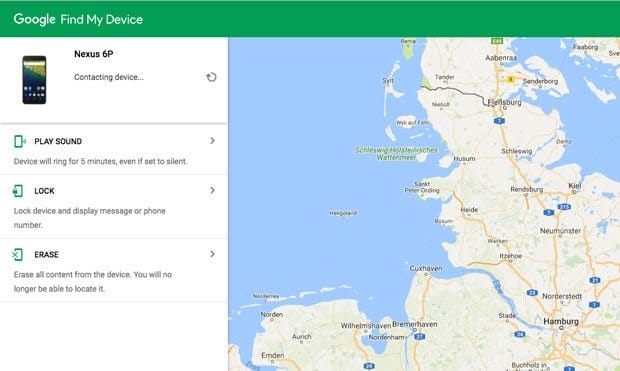
Find My Device is Google’s official and easy-to-use tool to track your lost phone or tablet. The best thing about it is that you don’t need to install an app to be able to track your devices. The only requirement is that your Android phone is connected to your Google account, turned on and connected to the internet. All you need to do is visit the Find My Device website while being logged into your Google Account. Once the site is loaded it will automatically try to track down your phone. If you habe several Android devices registered, make sure the right one is chosen in the menu.
In a recent update, Google implemented some of the features into their search results page. This means that you’re able to quickly locate any registered Android device right from the search results. By using the search phrase “where is my phone”, Google displays a little map above the search results in which it will try to find your phone. Once found, you can let it ring by clicking on “Ring”.
Although this makes it more convenient to find your lost phone quickly, it won’t offer you all the options you get with the full interface of Find My Device.
By using it, you are able to track your registered Android devices, let your phone ring and wipe your phone’s data (which has to be enabled on your phone). Besides that, Find Your Device doesn’t offer more options to remote control your phone. I hope that Google keeps improving it and introduces more helpful features, such as taking a selfie of the person using it in case it got stolen.
If there’s no laptop around when you lose your device, you can also use someone else’s phone to track it. Instead of using the mobile browser, you can also use the Find My Device app. You can sign in using the guest mode and your Google account credentials. Now you should be able to track your lost device, let it ring or wipe its data.
Are you not able to locate your lost phone this way? This can happen for several reasons. The one you should hope for, is that your device is simply not connected to the internet or turned off. In that case, simply keep trying to track it until it (hopefully) connects to Google’s services again.
Use Google Location History – now called ‘Timeline’ – to track your lost Android phone (even if it’s turned off)
Requirements:
Your device is connected with your Google account.
Your device has or had access to the internet (before it was turned off).
Location Reporting and Location History need to be activated on your device (can be done in the Google Settings app on your device).
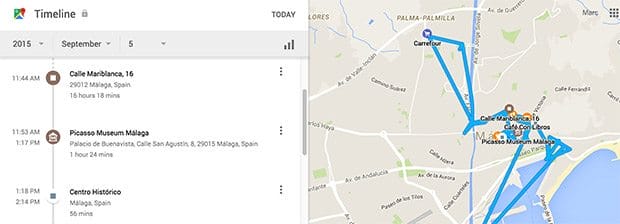
Unlike the Find Your Device tool, the Timeline feature of Google Maps doesn’t actually focus on tracking down a lost phone. You can use your location data for many different things such as looking up past travel routes. However, it is also a good way to locate your phone. As mentioned, if your Android device is turned off, you can use the location history data to identify the last recorded location. This means, even if your phone’s battery ran out you might still be able to find it.
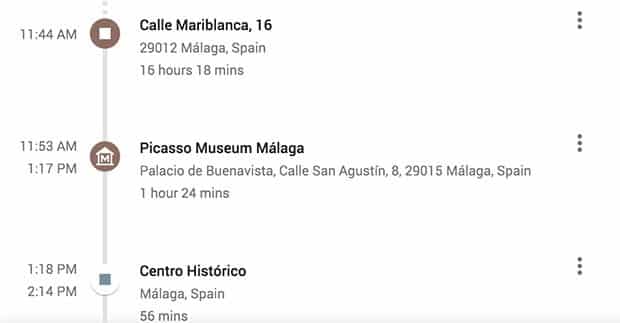
Here’s what you need to do. Go to the Your Timeline (former Google Maps Location History) and make sure the current day is selected in the calendar. On the left sidebar, you can see a complete timeline of that day including the names all recorded locations. On the right, you can see all the locations visualised on a map.
Other than Find My Device, which also uses GPS for tracking, Your Timeline only uses cell tower IDs and Wi-Fi location detection to collect location data. This means that the accuracy can vary significantly. The advantage of Timeline is the ability to track your phone’s location frequently over a period of time. So even if someone stole it, you could identify often visited places, which could be the thief’s home or workplace. That might help you and the authorities to catch the person.
Use Google Photos to find your stolen Android device
Requirements:
Your device has access to the internet.
Enabled ‘Backup & Sync’ option in Google Photos.
Someone needs to take pictures with your lost device.
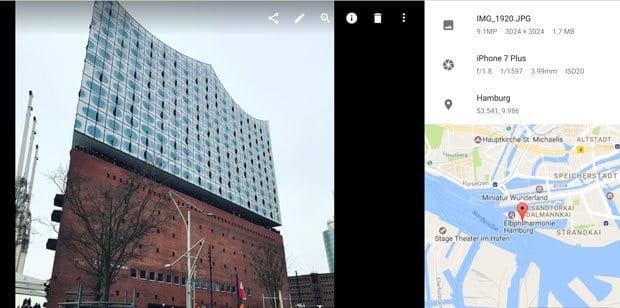
In case your device actually got stolen, you might be able to find it using the backup and sync feature of Google Photos. If you activated this option in the app, then all images taken with your phone will be uploaded to your Google Photos account. Why is that good news? Well, not just the image but also the location where it was taken is uploaded. So, in case the thief didn’t log out of your Google Account and tried out the camera on your phone, there might be some new images popping up in Google Photos. Obviously, this only works if your lost phone has an active internet connection and if you gave your photos app the permission to use your location. Please be careful in case you are able to identify the location of your phone, which might very well be the home address of the thief. Don’t try to find it yourself! Use that information and call your local authorities to take it from there.
Assuming all those requirements are met, what do you need to do? Here it is, step by step:
Visit photos.google.com and log in using your Google Account in which your Android device is logged into.
Check if any pictures were taken after your device was stolen.
If yes, then click on the image.
Now, click on the info icon on the top right corner.
In the appearing sidebar you can now see the image’s information including the located where it was taken.
Find your lost phone using these third party tools
Use Samsung’s Find My Mobile
Requirements:
Your device has access to the internet.
You need to have a Samsung account and your device registered with it.
Find my mobile needs to be set up on your Samsung phone (enabling remote controls).
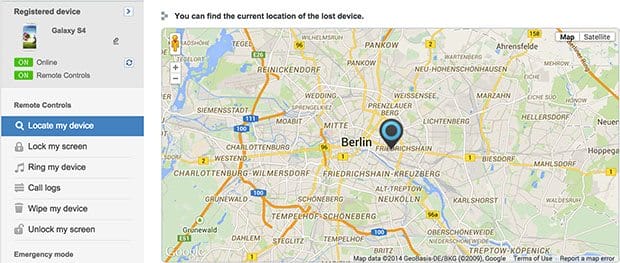
If you have a Samsung device, you might be able to find your phone using Samsung’s own tracking service ‘Find my mobile’. For this to work, you need a Samsung account and registered your device before you lost it. So try to remember if you did that.
You did? Awesome. Head over and sign in to the Find my mobile website. Check the left sidebar and make sure that your device is connected to your account. Now, all you need to do is selecting ‘Locate my device’ in the sidebar and click on the locate button. If your device is online and remote controls is enabled, you should see its approximate location. Find my mobile also allows you to do other things such as locking your device, letting it ring with a message and wiping its data.
7. How to use Dropbox to find your stolen phone (Android & iOS)
Requirements:
Your device has access to the internet.
Activated “Camera Upload” in your Dropbox app.
Someone needs to take pictures with your lost device.
Dropbox can be your last resort if all other approaches don’t bring you any closer to finding your phone. For this to work, however, Dropbox needs to be installed on your phone and the “Camera Upload” feature has to be activated. This way, every time your phone’s thief takes a picture, it automatically gets uploaded to your Dropbox “Camera Uploads” folder. So, if he or she takes a nice selfie you might be able to identify the thief. And if you’re lucky, you can make out the location by looking at the background of the uploaded pictures.
Should that be impossible, simply start a blog and show the world all the pictures your thief has taken. There’s one funny tumblr page sharing images of Hafid, the guy who stole the phone of the blog’s owner.
So far, that’s the only way Dropbox can help you. Dropbox doesn’t give you the IP address of mobile devices which are connected to your Dropbox account. This is only possible for Desktop PCs and laptops until now.
I hope you are reading this just out of pure interest and not because you lost your phone! But if that’s really the case, I truly hope that this article will help you track it down. Either way, I recommend installing a good tracking app BEFORE your phone vanishes. An app I recommend is Cerberus, which is available on Google Play.
Install a tracking app to secure and find your phone in the future
Although Google’s own tools are probably the best options, there are a few third party tools we recommend. They usually offer more remote control features and can add an additional layer of security.
Cerberus (free with in-app purchases)
Cerberus is our top recommended tracking app which features a large selection of remote control options. This includes basic location tracking, secretly recording audio or video, taking remote pictures, triggering an alarm and wiping your data. There are a lot more options which make Cerberus the Swiss army knife or tracking apps. What makes this app even better are some of the more advanced features. For example, you can hide the Cerberus app in your app drawer which makes it harder to spot and delete.
In case you have a rooted Android device, you’re able to use a flashable ZIP file to install it on your phone. This way, even if a thief resets your phone back to factory settings, Cerberus will still be installed on your device. For more infos on that, check out our article on Cerberus.
Lost Android is quite similar to Cerberus and offers a lot of different remote control options including tracking your phone, wiping its data and taking pictures remotely. Don’t judge the rather basic look of the Lost Android website which functions as the interface from which you can locate and control your device. It does its job well and even the developer behind the app states on the site that he’s an engineer and not a web developer.
The installation is pretty easy. After installing the app via the Play Store, open it and give it device administrator permissions. Done. Should you lose your phone, visit the Lost Android website, log in with the same Google Account as on your phone and choose one of the available tracking features.
Prey is known for it’s anti theft tools not just for smartphones but also laptops. The convenient thing about Prey is that it offers up to three devices you can track with their free account. Although it doesn’t offer as many remote control options as Cerberus, it covers all basic and most important features such as GPS tracking, taking pictures remotely and even scanning nearby WiFi networks for better tracking.
With the large number of questions people posted in the comment section, we figured it makes sense to address the most asked ones. That way, this guide is much clearer and you can focus on finding your phone instead of posting your question or sifting through the comments for an answer you’re looking for. The answers below might also bring some people back to reality, because in some cases it’s just not possible to locate a lost phone.
Can I still find my lost phone if it’s turned off / in airplane mode / the battery is dead?
This is a common scenario. Your phone is lost and its battery won’t last forever or a potential thief might have turned it off. What now? Except you’re working for the CIA, there no way to get in contact with your device. It needs to have an active internet connection to send its approximate location. However, you can use your phone’s location history to see where it was located before its internet connection stopped. For this to work, location history needs to be activated on the phone. If you didn’t do that, you don’t have another choice but wait and hope that someone turns it on and connects to the web.
I changed my Google account password. Can I still locate my phone?
Changing your Google password after you losing your phone is a totally logical thing to do right? You don’t want someone else have access to all your emails, drive documents etc. You can go ahead and change your password without losing the ability to track your device. Methods like Android Device Manager will still work. Shouldn’t you be able to locate your phone with ADM then I suggest you check the last recorded location using your phone’s location history.
Can I track my phone if someone made a factory reset?
That’s an easy one – No. As the name already implies, resetting a phone brings it back to its factory settings. The most important thing you need – connection to your Google account – won’t be there anymore. If you haven’t installed a tracking app with root access, such as Cerberus, then you won’t be able to locate it anymore.
Can I find my phone using my IMEI number?
Locating your phone with its unique IMEI number isn’t really possible. In some cases, the police can work together with a phone’s provider to locate it using its IMEI number. But don’t think you can just walk into a police station and expect them to do that. A more realistic thing you can do is to block your phone so that no one can use it to make calls, send texts or use the web. To do so, the best thing is to contact your provider.
By the way, you can find out your phone’s IMEI number by dialing *#06#. This code should work on most phones. Don’t have your device at hand? Here’s how to find the IMEI without having the phone.
Can I locate my device if someone changed the sim card?
Even if someone puts his SIM card in your phone, you might be able to locate it. Changing SIMs doesn’t disconnect it from your Google account, which is a good thing. It means that tracking tools like Android Device Manager or Android Lost should still work. The only needed thing in this scenario is that your phone keeps an internet connection.
My phone doesn’t show up on Find My Device. Why is that?
This can have many reasons. Your phone could be off, disconnected from the internet or your Google account. Keep in mind that changing your Google account password will automatically disconnect it from Google. Also, trying to locate a device with Find My Device doesn’t always work. I recommend that you keep trying to locate your phone every half hour or so. Your phone might have a bad connection or someone else turns it on and connects to the web. But if you changed your Google password, then Find My Device won’t be able to track it.
Do you still have unanswered questions? You’re more than welcome to post your question in the comments!
Things you should do ASAP if you find your device or end up getting a new one
We received a lot of emails, tweets and comments the last months from people that found their phone thanks to this article. Unfortunately, the majority of the readers isn’t that lucky. Either way, if you found your phone or plan to buy a replacement, you should be well prepared before something like that happens again. Below are two fundamental steps you should take to quickly track down your device should you lose it again.
Activate Find My Device and Location History
Make sure that both Find My Device and Location History are activated. Both tools can be a great help when you lose your device. With Find My Device you can track your device, make it ring and erase its data. Location history shows you the last recorded locations on a map. If someone stole it, then this could help you (and local authorities) to track down the thief’s home address, for example.
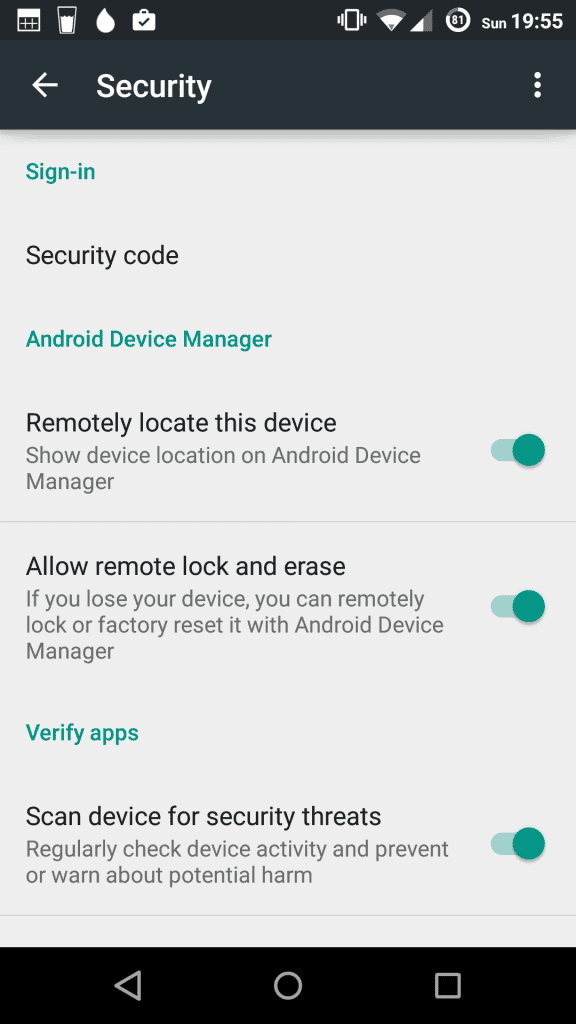
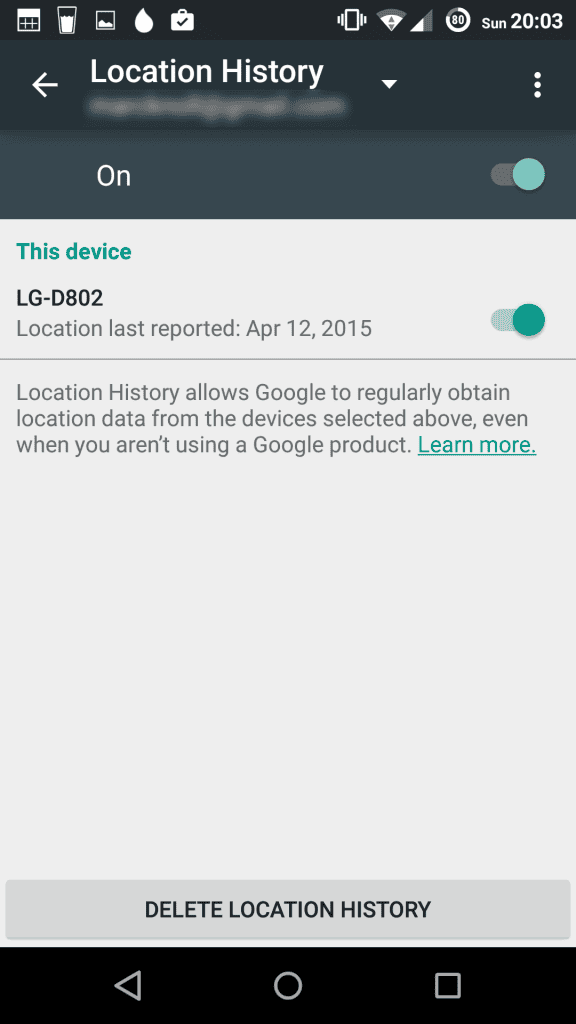
To activate both services, select “Google Settings” in your app drawer. Select Security and make sure both options below “Find My Device” are enabled. Now, go one step back and select “Location”. Click on “Google Location History” and turn it on. Now you’re able to use the tool to track your device and Location History to see its last recorded locations.
Set a lock screen pattern or password
Quite a lot of people already use lock screens to keep unwanted people from accessing private files like images, texts or videos. For some people, unlocking a phone countless times a day can be quite annoying, but it’s worth it. This extra layer of security not only keeps your friends and colleagues from secretly checking out your latest images or texts.
It also prevents thieves of changing any major settings such as disabling mobile data or disconnecting your phone from your Google account. As you learned, both a working connection to the web and a connected Google account are needed to get your Android phone’s current location.
Have you been able to get back your mobile device after it got lost? How did you get it back? Share your experience with us in the comments!
Remove Malware Best Antivirus For Android Mobile Phone?
Don’t fall victim to the increasing amounts of Android malware
Android is the most widely-used operating system in the world, and that means having the best security apps and antivirus tools for Android installed on your device is essential, as Google's OS is often targeted by malware due to its popularity.
Whatever software you use with your Android phone or tablet, you’d be wise to have an antivirus or a security app installed on your device. In this article, we’re going to highlight 10 of the best antivirus tools for Android in 2018.
Many of them do much more than run automatic scans, and they’ll actively try to prevent malicious web pages and files from being opened or downloaded in the first place. All the below scored at least five on AV-Test's leaderboard.
Gives you handy extras like a firewall and remote wipe
Call blocking
Anti-theft feature
Ad supported
Antivirus giant, Avast, has used its considerable skills to create an app which goes above and beyond a mundane scanner. Extra features in the free versioninclude a call blocker, firewall and even an anti-theft measure allowing you to remotely lock or wipe your Android device if it goes missing.
The app used to be paid but is now free, supported by ads. You can pay a small monthly or yearly premium to remove these. Another very useful premium feature is ‘in-app locking’ whereby your device will ask for a PIN before opening certain apps. This prevents malware from launching apps such as internet banking automatically.
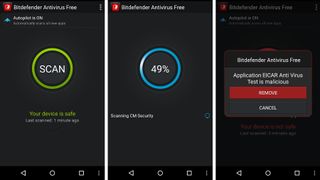
Bitdefender is a big name in the security community, and its free antivirus program is extremely lightweight. In fact, it doesn’t run in the background which frees up system resources and saves on battery life.
This does mean you have to schedule scans or run them manually to be safe. This said, any new apps downloaded to your device are automatically scanned. Another advantage of this app is that it’s ready to go as soon as it is installed – no additional configuration is required.
Just be sure that If you require extra security, sign up for a free 14-day trial of Bitdefender Mobile Security. This includes the basic antivirus as well as real-time protection for Google's Chrome browser and anti-theft features.
There's also a nifty Privacy advisor tool and adds a layer of security to your smartwatch via its WearOn technology which alerts you if you leave your phone behind. Security, not in the traditional sense.
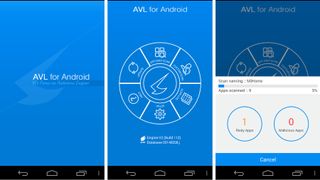
Antiy AVL is a former winner of the AV-Test (a well-respected independent antivirus testing outfit) award for best protection of mobile devices. Its features include not only an antivirus database (of course) but a scanner capable of detecting any kind of executable file making its way onto your device.
Other handy features include a call blocker to prevent malicious numbers from contacting you, as well as an anti-phishing feature to stop harmful websites from loading in the first place. The app is also designed to be light on resources, which is always handy when you’re struggling for battery life.
Sports some nifty features and blocks malicious sites
Extensive anti-theft features
Polices installed apps for data leakage
Ad supported
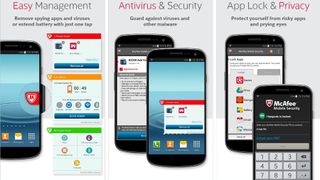
McAfee is another well-known name when it comes to antivirus software for the PC, and this Android app - McAfee Mobile Security - doesn’t disappoint. Besides the antivirus scanner itself, free features include tracking a lost device as well as locking and wiping it remotely. If your device is stolen, the app can even take a picture of the thief…
Other highlights include the ability to scan apps to check if they leak sensitive information, and lock them if necessary. McAfee will also block access to potentially malicious websites, as well as allow you to keep a blacklist of nuisance callers and texters.
Tackles the core job of sniffing out malware with aplomb
Top-notch malware detection
Blocks malicious sites or links
Extra features are more reserved for paid app
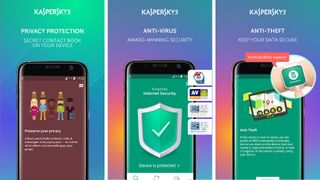
Kaspersky has a reputation up there with the big players like Bitdefender. The free version of its security app has some impressive features, and it’s very good at picking up on malware, with a detection rate of 99.9% according to AV-Test’s trials from November 2017.
Kaspersky Antivirus & Security will also try to block any malicious sites or links before you click through to them, preventing an infection from happening in the first place. A key feature is support for Android Wear which simplifies security management.
Kaspersky Internet Security for Androidis the premium version of the app; it offers extra security features such as automatic scan, anti phishing, a confidentiality feature plus call and text filtering.
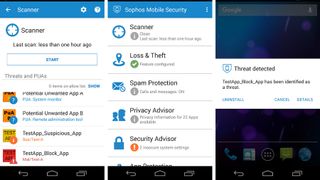
Sophos’ free antivirus app has previously won the AV-Test award for best protection in 2015. Unlike other free scanners, Sophos doesn’t contain any adverts. It does, however, block websites with potentially spammy or illegal content.
Apps are scanned for malware or otherwise harmful content as they are installed and Sophos alerts you if they might leak any sensitive information. The antivirus scanner can be scheduled to scan files and folders periodically, and the malware database itself is updated daily.
The app also includes a handy QR code scanner which can be used to set up secure Wi-Fi connections. There’s also an authenticator that can generate one-time passwords for two-factor authentication.
Another big name offering tight security for your mobile
Excellent antivirus capabilities
Remote locking of phone
No malicious site blocking
This free app from Norton was able to detect 100% of all Android malware when benchmarked by AV-Test a few months ago. The scanner is powered by Norton Mobile Insight and can detect viruses inside apps and files, then remove them automatically.
Other useful security features include the ability to lock your phone via an SMS message, or if the SIM card is removed. You can also choose to remotely lock your device if it goes missing (or have it locked after 10 unsuccessful attempts to enter the passcode).
Impressive security with parental control features
Solid security
Integrated privacy scanner for Facebook
Trend Micro’s effort not only scans new apps for malware, but prevents newly installed apps from accessing other programs, which can be useful for device admins and parents.
There’s also a built-in privacy scanner for Facebook which warns you if your profile settings are displaying sensitive personal information.
The free version includes a 7-day trial of premium features. These include a malware blocker which is capable of scanning apps before they are even installed to pre-emptively avoid any potential infection. There are also utilities for safe surfing, as well as call and text filtering.
An app which runs well even on older Android devices
High malware detection rates
Plenty of features
Anti-theft alarm
This security app from South Korean AhnLab is not as famous as the others on this list, but nonetheless has very high detection rates for Android malware according to AV-Test (99.6%) and runs well even on older Android devices. Indeed, it has a built-in booster to help speed up your phone’s performance.
The app comes with a free 10-day trial of the anti-malware features which proactively search for vulnerabilities and warn you if apps could potentially leak sensitive personal information.
Other handy privacy features include a hidden gallery for personal photos and a privacy cleaner to securely clear your browsing history. Anti-theft measures include an alarm which kicks in if the device is reported lost or the SIM card is replaced. You can also remotely track, lock and wipe your device.
Has a smart system of categorising apps on a privacy scale
Can scan external storage
Neat Identity Safeguard feature
No blocking of malicious websites
Avira’s mobile offering will not only scan files you download and content on your phone’s memory, but it can also scan external storage such as your SD card. Applications are rated using a privacy scale to help you easily decide how much they can be trusted with your data.
The integrated ‘Identity Safeguard’ regularly checks if the email addresses in your contacts list have been involved in any major data breaches. The app is controlled by a web-based management portal, which is extremely useful if you want to set up a common policy over multiple Android devices.
The premium version includes better support, automatic blocking of malicious websites, and more frequent updates.